Intermittent Ethernet
Ethernet usually provides a stable, reliable connection for browsing, streaming and gaming. If your wired connection keeps dropping and reconnecting, the checks below can help identify whether the problem is with your device, cable, adapter or connection at your accommodation.
This guide is for an intermittent connection. If your Ethernet connection does not work at all, follow our Ethernet loss of service guide.
Before you begin troubleshooting
- Check the Service Status in your account or the Glide app for any known issues affecting your accommodation.
- If your device also has Wi-Fi, temporarily turn Wi-Fi off while testing Ethernet so that it cannot switch to a wireless connection.
- While the fault is happening, note the time and take a screenshot or photo of any error messages before restarting or unplugging anything. The instructions near the end of this guide explain what else to capture.
- Try one change at a time, then test for long enough to see whether the usual disconnection returns.
Troubleshooting steps
1. Check what happens when the connection drops
These observations help us narrow down the cause:
- Does your device report that the cable is unplugged? Check the cable, wall socket and any USB adapter or dock using the steps below.
- Does Ethernet remain connected, but websites stop loading? Note the connection status and any errors. Capture your network details before reconnecting.
- Does only one game, app or website stop working? Try another website or app at the same time. Check the affected service's official status page for an outage.
- Do other devices lose their connection at the same time? Check both Ethernet and Wi-Fi devices, if available, and let us know which are affected.
- Does it happen after sleep or when the device is moved? Note this, as it can help identify a device, adapter or cable issue.
If your Ethernet port has indicator lights, note whether they go out when the fault occurs. Some ports do not have lights, and lights alone do not confirm that internet access is working.
2. Check the cable and ports
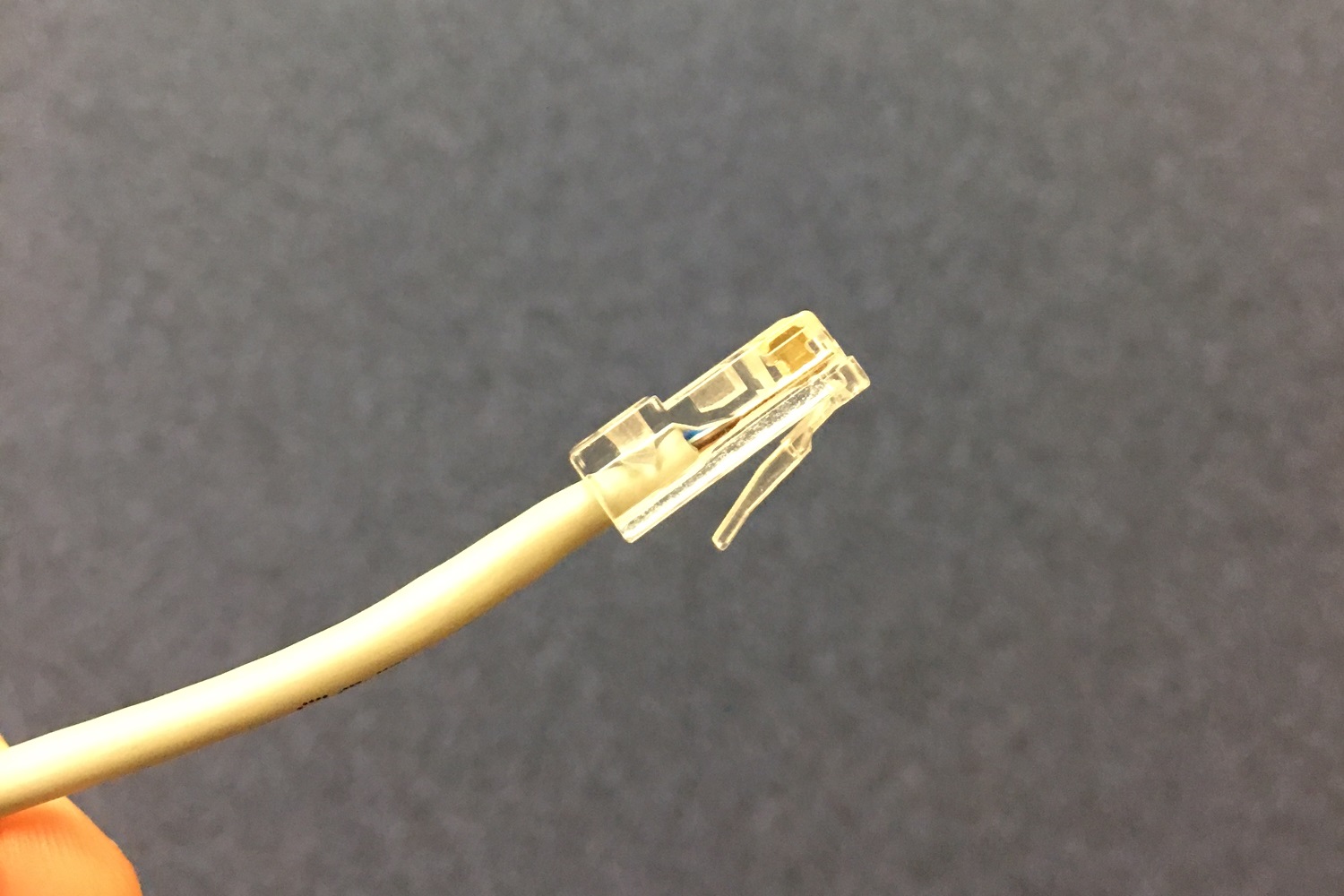
- Unplug and reconnect the Ethernet cable at both ends. The connector should fit securely, with its plastic clip clicking into place.
- Check the cable for damage, sharp bends or a broken retaining clip.
- Try a different, known-working Ethernet cable. A cable can be faulty even if it looks undamaged.
- Look for visible damage or loose parts on the wall socket and your device's Ethernet port. Do not force a shutter open, insert tools, touch the contacts or remove the faceplate.
Need a cable to test? Your reception team may be able to lend you one.
If the wall socket is damaged or loose, contact us at studentsupport@glide.co.uk. Include a photo if possible.
3. Compare another socket or device
If there is more than one Ethernet socket in your room, try the other sockets intended for resident internet access. Not every socket will be active.
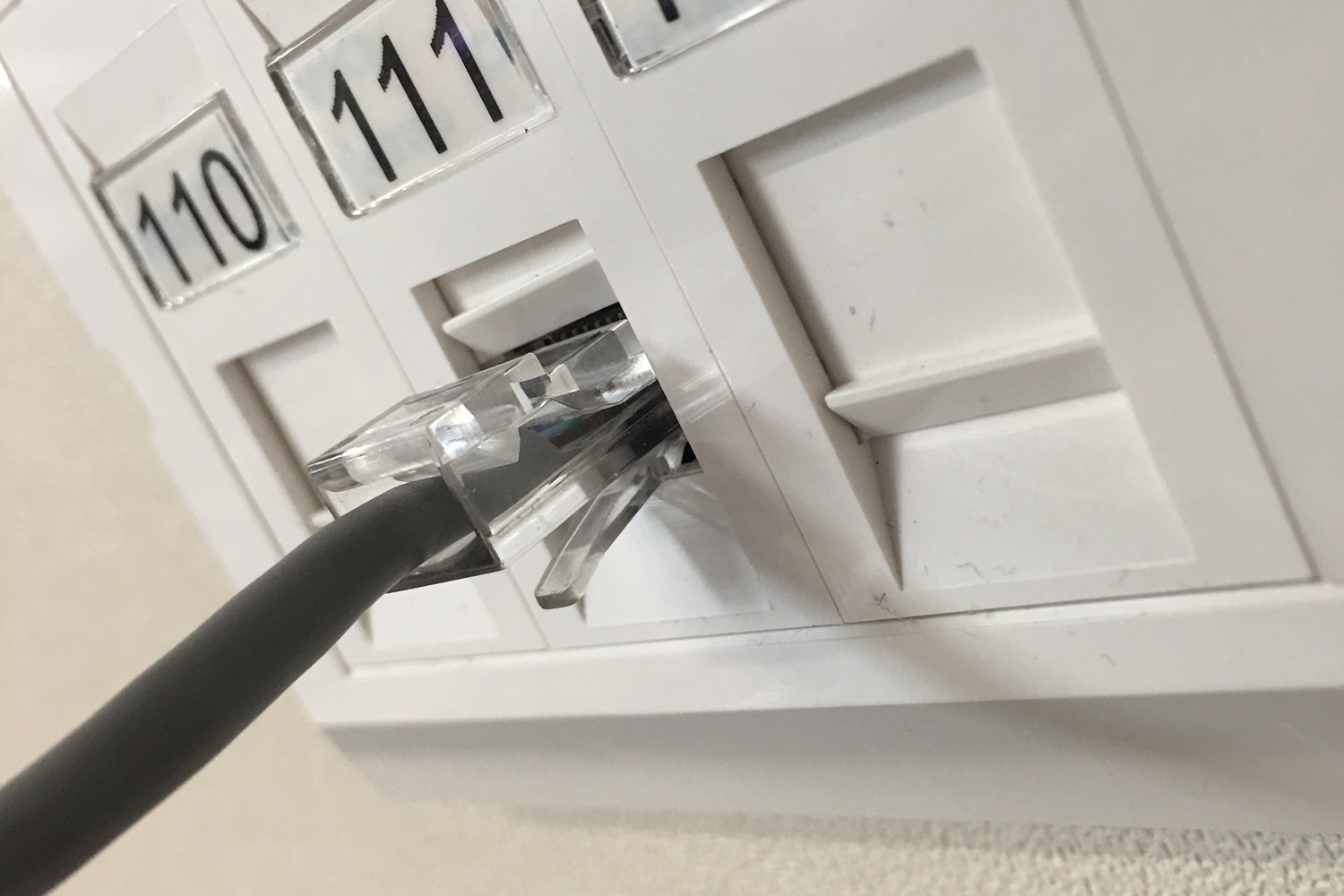
- If possible, test another device using the same socket and a known-working cable. Make sure that device is signed in or linked to its own appropriate Glide account.
- If you have permission and access to another resident internet socket, test your original device and cable there.
- Record which socket you used and whether the disconnections continued.
These comparisons help us identify whether the fault follows your device or cable, or only happens at one socket. A single successful connection does not rule out an intermittent fault.
4. Check USB adapters, docks and extra equipment
If you use a USB-to-Ethernet adapter or docking station, check the connection between it and your device as well as the Ethernet cable.
- Reconnect the adapter or dock securely. If it needs its own power supply, make sure that is connected.
- Try another suitable USB port on your device.
- If possible, connect a compatible Ethernet adapter directly to the device instead of through a USB hub or dock.
- If your device has a built-in Ethernet port, test that instead. Alternatively, try another compatible adapter.
- Check the adapter or dock manufacturer's support page for updates intended for your exact model.
- If you use your own switch, powerline adapter or other extra networking equipment, test a direct connection to the resident Ethernet socket where possible.
If Glide has supplied a router as part of your service, connect to its LAN port as instructed for your accommodation. Keep that router in place.
A different Ethernet adapter can have a different MAC address. If your connection requires device registration, you may need to link the replacement adapter's wired MAC address to your account.
5. Check your device is signed in or linked
Where your Ethernet service requires a Glide sign-in, open a browser while connected by Ethernet and complete the sign-in process. If you see the Glide welcome page again when the connection drops, let us know.
For a device that cannot complete the sign-in process, such as a games console or smart TV, you may need to add its wired or Ethernet MAC address to your Glide account. Its Wi-Fi MAC address is usually different.
Find out how to add a device to your account.
6. Restart your device and check its connection and updates
Save your work and restart the affected device. Then select your device below. Updates can address software or driver faults, but will not repair a damaged cable or socket.
Windows 11 and Windows 10
- Windows 11: Open Settings > Windows Update > Check for updates. For available driver updates, check Advanced options > Optional updates.
- Windows 10: Open Settings > Update & Security > Windows Update > Check for updates. If shown, select View optional updates > Driver updates.
- Look for an update for your Ethernet adapter. If none is offered, check your computer or adapter manufacturer's website for a compatible driver for your exact model.
- Restart if prompted, then test the connection again.
Use manufacturer or Windows Update downloads rather than third-party driver download tools.
Apple Mac
- Open Apple menu > System Settings > Network and check the status of your Ethernet connection. A USB adapter may appear under its own name.
- Open System Settings > General > Software Update and install any available compatible updates.
- Restart if prompted, then test again.
On older macOS versions, open System Preferences > Software Update. If you use a third-party adapter or dock, also check its manufacturer's update instructions.
Chromebook
- Select the time at the bottom right and check that the connection is shown as Ethernet.
- Open Settings > About ChromeOS > Check for updates.
- Install available updates and restart if prompted.
- If you use a USB Ethernet adapter, also follow the adapter checks in step 4.
PlayStation 5 and PS5 Pro
- Open Settings > Network > Settings > Set Up Internet Connection.
- If the wired connection is not already set up, select Set Up Wired LAN > Connect.
- Open Settings > Network > Connection Status > Test Internet Connection.
- Photograph any error or failed stage, ideally while the problem is happening.
PlayStation 4 and PS4 Pro
- Open Settings > Network > Set Up Internet Connection.
- Select Use a LAN Cable > Easy.
- Run Test Internet Connection when prompted and photograph any failed stage or error.
Xbox Series X, Series S and Xbox One
- Connect the Ethernet cable, then press the Xbox button to open the guide.
- Open Profile & system > Settings > General > Network settings.
- Select Test network connection.
- Photograph any error message and note whether the console still recognises the wired connection.
Nintendo Switch 2 and Nintendo Switch
Use a supported wired setup for your console, such as its compatible dock's LAN port or a compatible LAN adapter.
- From the HOME Menu, open System Settings > Internet > Test Connection.
- Photograph any error code or failed result.
- To check for a console update, open System Settings > System > System Update.
Apple TV HD and Apple TV 4K with Ethernet
- Connect the Ethernet cable. Apple TV uses Ethernet automatically when connected.
- Open Settings > Network and photograph the connection information during the fault.
- Check for updates under Settings > System > Software Updates > Update Software.
Some Apple TV models do not have an Ethernet port; these instructions apply to models that do.
Roku devices with Ethernet
- Open Settings > Network > Check connection.
- Photograph any failed result or error message.
- Check for updates under Settings > System > Software update > Check Now. On some versions, the menu is called System update.
Use Ethernet only if your Roku model supports it, using a built-in port or a supported adapter.
Amazon Fire TV with a supported Ethernet connection
- Open Settings > Network and view the connection status. On supported models, press Play/Pause to open the network status tool.
- Photograph any error or failed connection check.
- For updates, open Settings > My Fire TV or Device & Software > About > Check for System Update.
If your setup uses an Ethernet adapter, check its connections and power supply too.
Other smart TVs, streaming devices and wired devices
Menus vary by manufacturer and model. In your device's network settings, confirm it is using Wired, LAN or Ethernet, and run its connection check if one is available.
Photograph the results while the fault occurs. Check your exact model's manual or manufacturer support page for restart and software update instructions.
A factory reset is not needed for these initial checks.
7. Check whether sleep or a VPN is involved
Drops after sleep: Test while your computer remains awake, with a laptop connected to power. Note whether the connection fails during active use or only after waking. If the fault only happens after sleep, check your computer, Ethernet adapter or dock manufacturer's guidance for your model.
Drops while using a VPN: If permitted, disconnect the VPN and test ordinary browsing. Some VPNs have a kill switch that blocks internet access when the VPN connection drops; follow your VPN provider's instructions for testing this.
Keep your firewall and security protection enabled. If a work or university device is managed by an IT team, ask them before changing its settings.
8. Refresh network settings if earlier checks have not helped
These steps may help with device network configuration problems. They will not fix a loose cable, damaged socket or an Ethernet adapter that disconnects from the device. Capture the fault information first.
Windows 11: network reset
Use network reset as a last resort. It reinstalls network adapters and resets their settings. Have your Wi-Fi passwords ready; VPN software or virtual network software may need setting up again.
- Open Settings > Network & internet > Advanced network settings > Network reset.
- Select Reset now > Yes.
- Save your work and allow the computer to restart. Reconnect and test again.
Windows 10: network reset
This is a last-resort reset. Keep your Wi-Fi passwords and VPN setup details available.
- Open Settings > Network & Internet > Status > Network reset.
- Select Reset now > Yes.
- Save your work and allow the computer to restart. Reconnect and test again.
Windows: optional Winsock reset
If Ethernet remains connected but applications cannot access the internet, a Winsock reset can help with some Windows networking software problems. You do not need to perform it separately if a network reset has already resolved the issue.
- Search for Command Prompt in Start, then select Run as administrator. Approve the prompt if asked.
- Enter
netsh winsock resetand press Enter. - Save your work and restart your computer.
Apple Mac: renew the DHCP lease
If Ethernet remains connected but internet access stops, try requesting the IP address information again. This is not a full network reset.
- Open Apple menu > System Settings > Network.
- Select your Ethernet connection or Ethernet adapter, then select Details.
- Select TCP/IP > Renew DHCP Lease > OK.
- Test the connection again.
Capture information while the connection is not working
Details captured during a disconnection can be more useful than results taken after it has recovered. Select your device below.
Windows 11 and Windows 10
- Open Start, search for Command Prompt and open it.
- Enter
ipconfig /alland press Enter. This displays information without changing your settings. - Find the section for the Ethernet adapter you are using. Take screenshots showing its Description, Physical Address, IPv4 Address, Default Gateway and DNS Servers, where listed.
- If it says Media disconnected or an address is missing, capture that too.
Also capture any message shown in Windows network settings when the fault occurs.
Apple Mac
- Open Apple menu > System Settings > Network.
- Capture the status of your Ethernet connection or adapter.
- Select the connection, then Details > TCP/IP. Capture the IP address and router information shown.
- Select DNS and capture the DNS server addresses.
For help finding your wired MAC address, see our device details guide.
Chromebook
- With Wi-Fi turned off and Ethernet connected, open Settings > About ChromeOS > Diagnostics.
- Review the Connectivity results for your Ethernet connection.
- Expand IP configuration to view the address information.
- Select Save test details and send the saved file to us.
Consoles, smart TVs and other devices
Photograph your device's network status, connection test results and any error codes while the problem is happening. Include the device make and model, and its wired MAC address if available.
If possible, also test a laptop or desktop on the same cable and socket. Capture its details if the same fault happens there.
Contact the Service Desk
If the disconnections continue, call us on 0333 123 0115, email studentsupport@glide.co.uk, or use the form below.
Please include your Username or Account ID, your accommodation and room number, and answers to these questions:
- Has the connection ever worked without issue? When did the problem start?
- How often does it disconnect, and how long does each disconnection last? Please include example dates and times.
- What happens when it drops? Does the device report an unplugged cable, lose its adapter, or remain connected without internet access?
- Does it reconnect by itself, or do you need to restart, reconnect the cable or sign in again?
- Does it happen during active use, after sleep, or when the device or cable is moved?
- Have you tried a different Ethernet cable, socket or device? What were the results?
- Are you using an Ethernet adapter, dock, router, switch or other extra equipment? Please include its make and model.
- Do other devices disconnect at the same time? Is Wi-Fi affected too?
- Are all websites and apps affected, or only a particular service?
- Do you see any warnings or error messages? Please attach screenshots, photos and the network details captured during the fault.
If you use the form below, you can send attachments when requested. Please avoid including passwords or your private Wi-Fi passkey in screenshots.
We will get in touch as soon as we can.