Forgotten username or password
Forgotten your Glide account username or password? Follow the instructions below to recover your username or create a new account password.
Important: Account password or Wi-Fi password?
These instructions only change the password used to sign in to your Glide account. They will not change the private network password used to connect to Glide_Resident.
If you have forgotten the unique Wi-Fi password used to connect to Glide_Resident, check the registration email you received after signing up through Glide_Signup, as your password will be included in that email. If you cannot find the email or still need help, please call the Glide Service Desk on 0333 123 0115.
Watch our guide
Recover your account details
Select the relevant section below to expand and view the instructions.
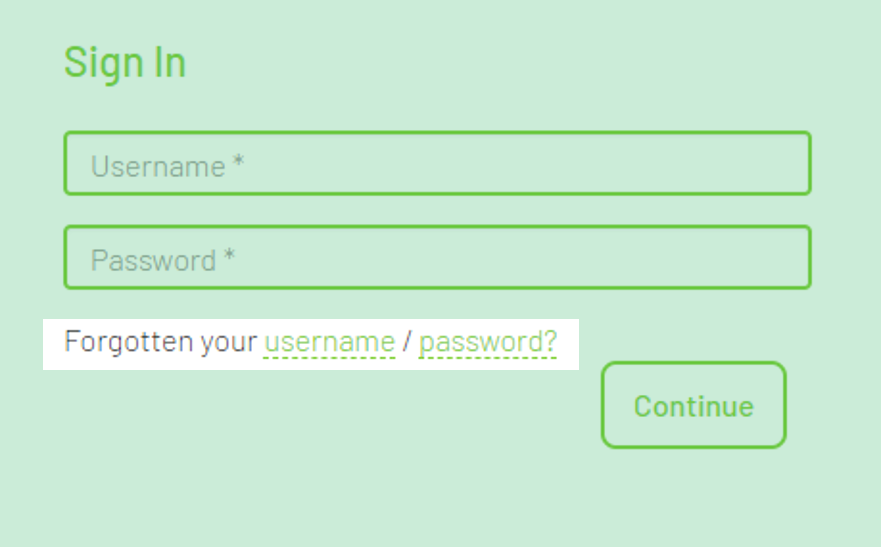
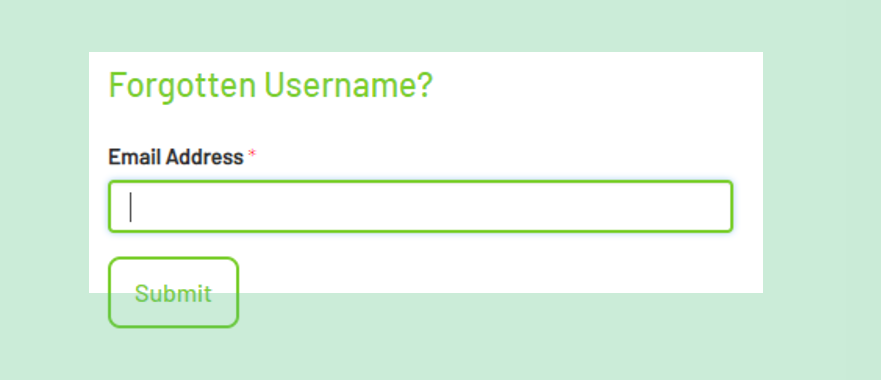
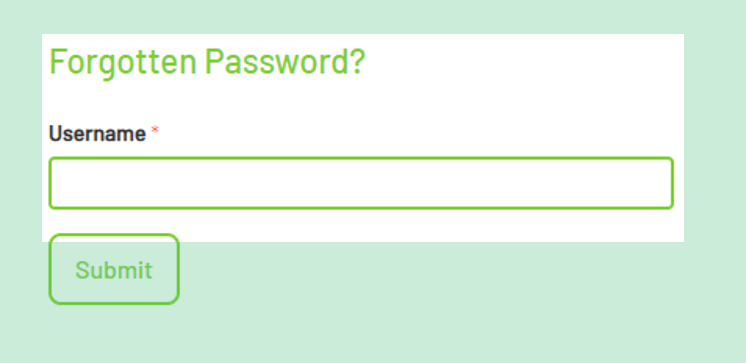
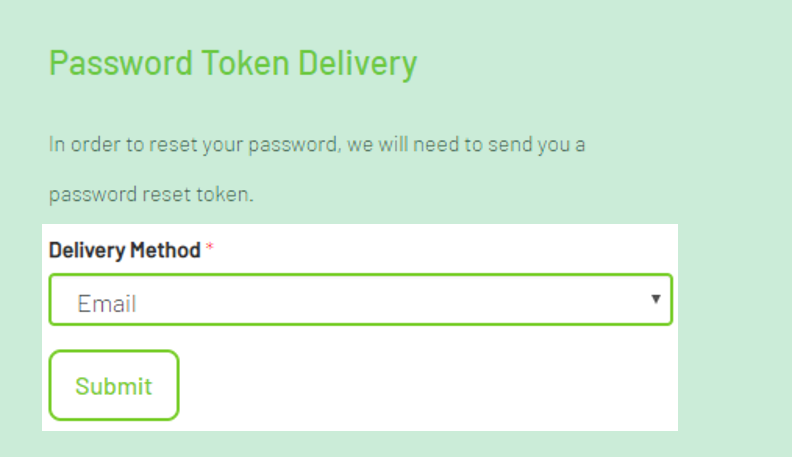
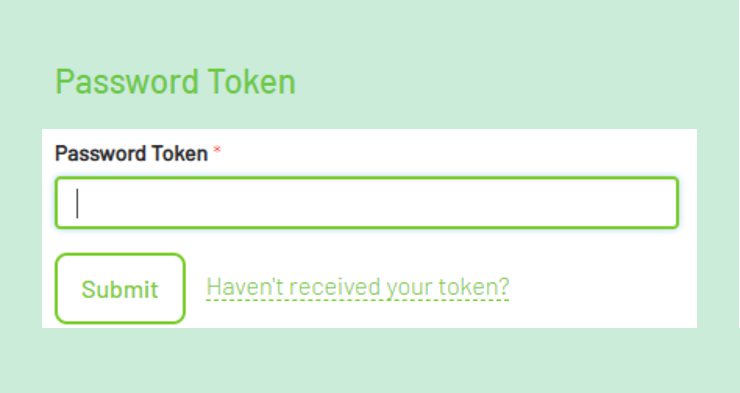
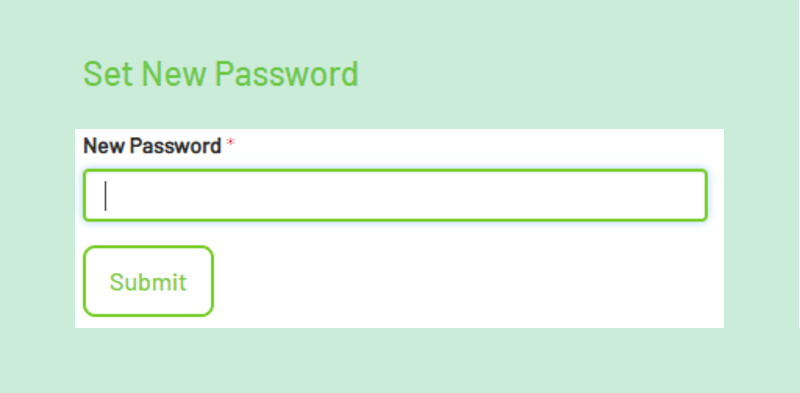
Select My Account at the top of the website. From the login screen, select Forgotten your username/password? Select Forgotten Password, enter your Glide username and select Submit. Choose whether you would like to receive the reset token by email or text message. It will be sent to the email address or phone number registered to your account. Select Submit after choosing an option. Keep the password reset page open while you retrieve the token. Enter the token you receive into the Password Token field, then select Submit. The reset token is not a temporary password. Only enter it in the Password Token field. Enter and confirm the new password you would like to use for your Glide account. Once the password has been changed successfully, you will see a confirmation message. You can then sign in using your username and new account password.Start here
Recover a forgotten username
Reset a forgotten account password
1. Request a password reset
2. Choose how to receive your reset token
3. Enter the reset token
4. Create your new account password
5. Sign in
Still need help?
If you need further assistance, please use the contact form below or call the Glide Service Desk on 0333 123 0115.